Prepare images for their intended placement
Prepare website photographs for a specific block: a product card, article cover, hero or gallery. Keep the original, choose an appropriate crop, create the necessary versions and review them at the block's actual display sizes. Using one large file everywhere often transfers unnecessary data, while aggressive compression can hide important details.
Start with an inventory of images and their purpose. Mark where a visitor needs an overall atmosphere and where they examine a logo, texture or product condition. This helps set priorities: a decorative cover and a product photograph should not receive identical processing without considering their meaning.
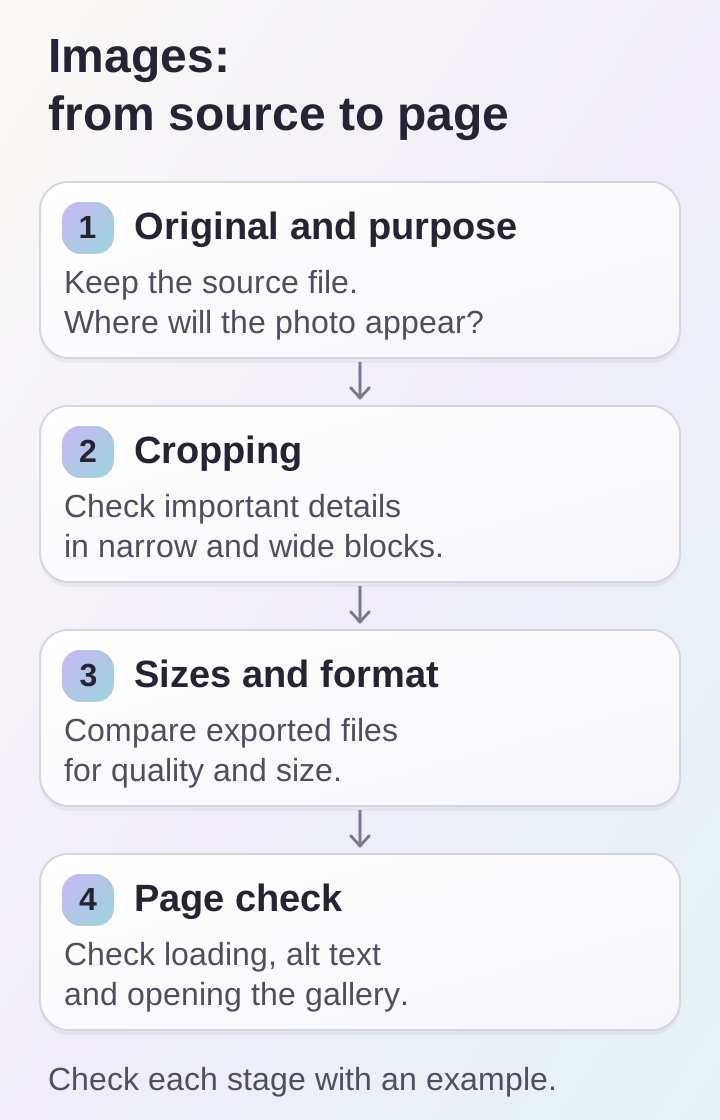
Photo preparation finishes on the page: check important details, actual loading and the gallery on different screens.
Preserve originals and organize files
Store originals separately from publication versions. After a composition or design change, they let you create a new crop without enlarging a photograph that has already been reduced. Give files clear names and link them to a product, article or section. For a catalog, a stable item identifier is useful in addition to its name.
Check that the photograph matches the published variant. If a card's selected color changes, the image should show that variant or clearly remain a general illustration. A generated image can support the design, but must not present an unverified product detail as an actual specification. Accurate visual representation matters when selling.
Agree on cropping
Review the same shot in a wide and a narrow block. Centering the subject helps but does not solve every case: an important detail in a group of objects may sit near the edge. A phone sometimes needs a different crop that preserves the meaning rather than simply a smaller copy of a landscape photograph.
Show the designer the original and the acceptable crop boundaries. Decide whether the subject can be cropped or needs to be shown in full. One composition may suit a cover and another a product image. Do not try to fix an awkward composition solely by enlarging the image: that can cut off edges and overwhelm the screen.
Prepare sizes and responsive delivery
Measure the block's width in the designs and account for high-density displays. Prepare several sizes where justified. Avoid a universal rule such as “every image must have the same width”: a small icon, a cover and a zoomable photograph serve different purposes.
A developer can offer several resolutions through srcset and describe the block's size through sizes. Use picture when the crop itself changes. These mechanisms help choose a suitable resource instead of serving one version to every screen; verify the choice after implementation. The MDN guide to responsive images explains the principles.
Choose a format by comparing the results
Compare several exports using representative photographs. Consider not just file size but subject edges, fine lines, gradients, transparency and texture. The right format depends on the image and the supported publishing workflow. JPEG, WebP or another supported format should not be declared best for every image in advance.
Avoid repeatedly saving an already compressed version. Export again from the original and compare the two side by side. For product photos, zoom in separately on logos and fine details: they may degrade before the overall silhouette does. For transparent images, check edges against light and dark backgrounds to catch visible halos.
Configure loading without empty gaps
Reserve a place for the image in the markup: dimensions or an aspect ratio keep the block's geometry stable before loading. This is especially noticeable in card lists, where a late image should not abruptly shift labels and buttons.
Lazy loading is useful for images below the visible area. An important image in the first screen should generally not be delayed this way. The decision depends on its position and role. The web.dev guide explains native lazy loading and limitations for the first screen.
Add descriptions and check the page
Give a meaningful image clear alt text: what it shows and why it matters in context. Do not stuff it with keywords or unnecessarily repeat the caption. Empty alt text may suit a purely decorative image; its role needs to agree with the block's markup.
Check phones, tablets and computers, both themes, long headings and gallery opening. In browser tools, inspect which file actually loaded and how much data was transferred. Repeat with a cleared cache to evaluate loading rather than previously saved resources. Record conditions when comparing time or transfer size.
Frequently asked questions
Do we need a separate file for every phone? No. Usually you prepare a reasonable set of sizes and, when necessary, a different crop; the browser selects an appropriate version.
Can we simply hide an image on phones? Sometimes, if it is decorative and its absence does not remove information. But hiding alone does not prove the file is not downloaded: check network requests.
Should a logo be placed over every photograph? Only when it serves the task. It may obscure the product and weaken a small cover; check the decision in the actual block.
How do we know compression is sufficient? Compare quality at the display size and data transfer on the page. A universal quality percentage does not account for differences between images.
Publication checklist
- Originals are preserved, and purposes and associations are known.
- Cropping has been checked on narrow and wide screens.
- Sizes and formats were chosen by comparison.
- Important details, transparency and descriptions have been reviewed.
- Actual loading and block positions have been inspected.
Send a few original photographs and the pages where they will appear. DDRW can help agree on image preparation for a business website or online store, and loading checks can be included in support.