Choose real visitor tasks
A useful place to start an accessibility check is an action: finding a service, reading terms, submitting an inquiry or downloading a document. An attractive design alone does not show whether someone can complete that journey using a keyboard, enlarged text or a screen reader. Acceptance checks need to include the working page and its states.
For an initial check, draw a short journey map: where the person arrives from, what information they need, where they make a decision and how the action ends. Include an empty search result, a form error and an open menu. These states are often left out of design presentations.
Assign an owner to each journey and record findings with a link to the page. This makes the check a team task rather than a one-off discussion of taste.
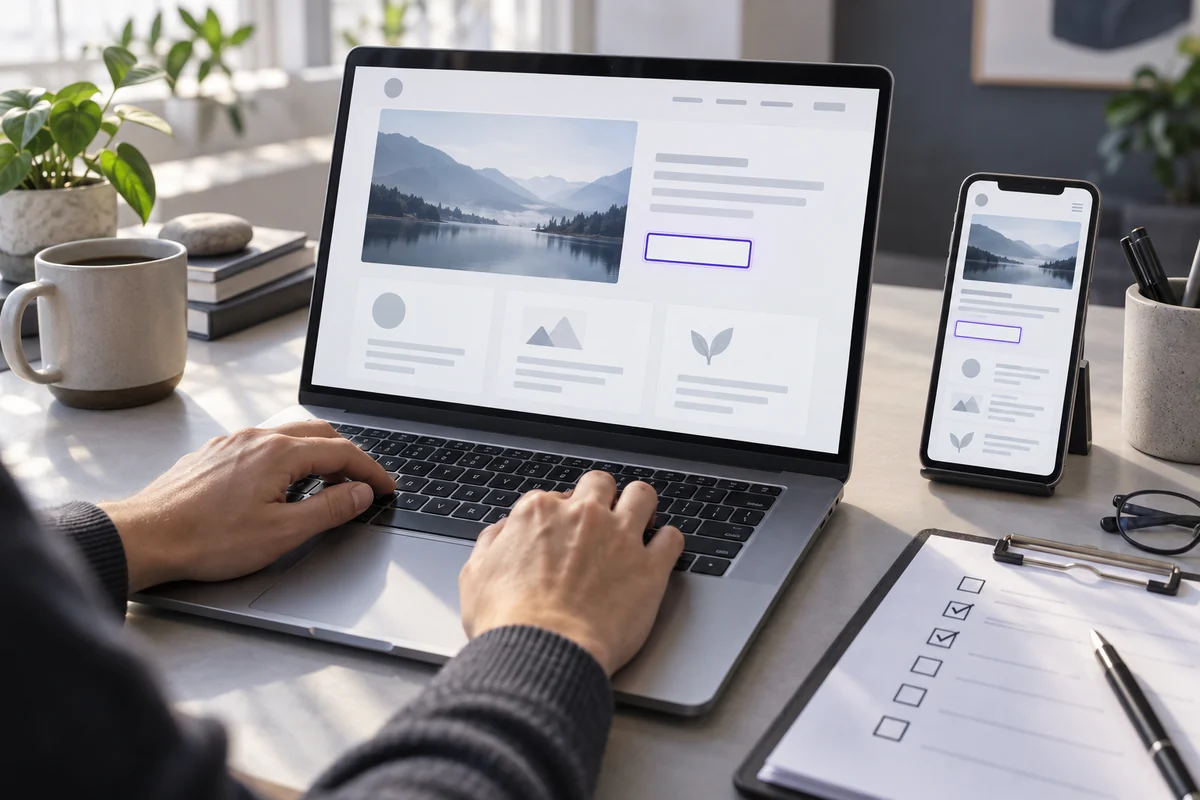
AI-generated illustration. Check visible focus and a clear primary action alongside the keyboard journey and input errors.
Follow the journey using a keyboard
Put the mouse aside and start with the Tab key. Check that movement between interactive elements follows a logical sequence, the current element is visible and actions can be completed using the keyboard. Open the menu and a modal dialog, then return to the main content. At every step, it should be clear where you are.
Record places where focus disappears behind a fixed header, reaches invisible buttons or leaves no way out of an open panel. The focus outline is part of the interface; its usefulness cannot be judged only by whether its color is appealing. W3C WAI Easy Checks describes a practical approach to this initial review.
A hypothetical example: a visitor opens a booking form, selects a date and wants to cancel. Include that journey in acceptance checks alongside a successful submission.
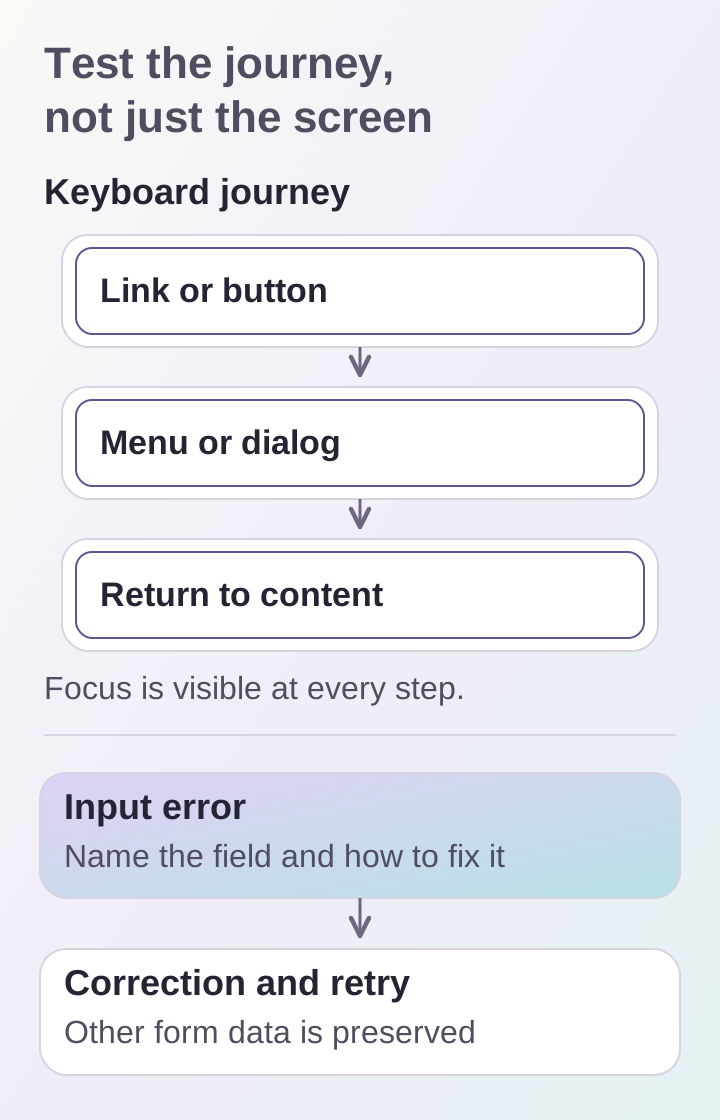
Check both the normal journey and failure states: leaving a menu, returning from a dialog and correcting a form. This review does not replace a full accessibility audit.
Check form labels and errors
A “Phone” field should remain understandable once typing starts. A hint inside an empty field disappears, so it cannot replace a persistent label. The W3C guidance on field labels also explains the programmatic connection between a label and its control: this gives assistive technologies the control's name.
Submit the form with a deliberate error. Read the message: does it explain which value needs correcting? Are the other entries preserved? Can the user reach the affected field? Give error messages the same attention as the primary button label.
For a hypothetical inquiry form, it helps to define three situations in advance: a missing required contact, an invalid format and a submission failure. Each needs a clear outcome so visitors do not blindly repeat the action.
Classify images by purpose
For an informative image, alternative text conveys the important information. For an image acting as a button or link, it should explain the action. A decorative illustration can have empty alt text if its meaning is unnecessary to understanding the page. The W3C image tutorial explains these distinctions.
When preparing content, review every cover, diagram and photograph. Instead of repeating the file name, describe what actually helps the reader. A complex diagram also benefits from a nearby written explanation: a single short sentence may not convey all its relationships.
Agree separately on who adds descriptions to new images in the admin panel. Otherwise, the rules you prepared will be lost after a few content updates. The editorial checklist can record an image's purpose and its finished caption.
Review contrast and enlarged text
Measure contrast for the actual text and background combinations, including both themes, secondary labels and control states. For example, Success Criterion 1.4.3 in WCAG 2.2 requires an AA contrast ratio of at least 4.5:1 for normal text; large text has a 3:1 threshold. The criterion includes stated exceptions, so the reviewer needs to consider the element's purpose.
Enlarge the text and narrow the window. The heading, description and button should retain their meaning and reading order. Look for clipped labels, overlapping cards and actions pushed beyond the edge. Give the team a screenshot of the issue and the original zoom settings so they can reproduce it.
Include accessibility in acceptance checks
Record the result for each key journey:
- the action can be completed using a keyboard;
- the position of focus is clear;
- fields have labels and errors explain the next step;
- the purpose of important images is available in text;
- contrast has been measured with a tool;
- enlarged text does not hide content;
- findings have an owner and a correction deadline.
This review helps identify obvious barriers, but does not prove full WCAG conformance. A claimed level requires an agreed audit scope and checks against every applicable criterion. Include basic requirements in interface design while the structure and components are still easy to change. To assess an existing website, send its address and main user tasks through DDRW contacts.