A visitor taps the “Catalog” row expecting to see subsections. Instead, a new page opens: the list expands only when the small arrow on the right is tapped. A business may need both functions, but placing them together does not explain where a person should tap.
To agree how such a menu should work, discuss what each area does and what happens after activation. We created an educational demo of two options, target-area diagrams and a checklist. The demo shows control differences; user research and conversion impact were not measured.
Define the row's task: expand a list or open a page
A section may serve two different purposes: display nested links on the current screen and open a category overview page. Record them separately. Then decide whether they should sit alongside each other or whether category navigation can move inside the expanded list.
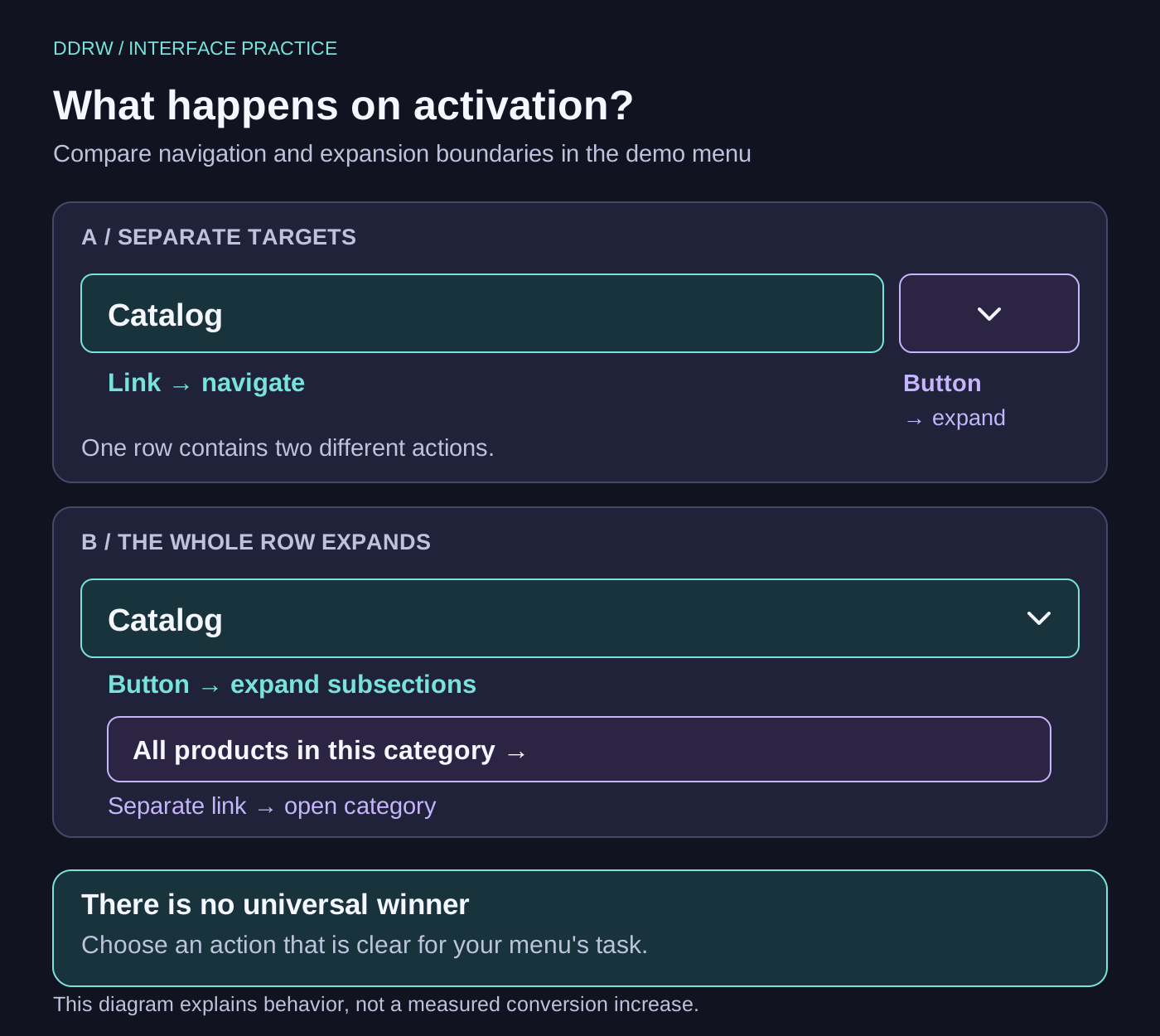
In our example, option A separates the controls: the “Catalog” label is a link, and the adjacent arrow is an expand button. In option B, the entire row is an expand button; an “All products in this category” link appears inside the open list. Visitors do not have to distinguish between the label's and arrow's actions in one row to reveal subsections.
The second option suits a journey where people choose a subsection first. If direct access to the category overview is important, a separate link next to a button may also be appropriate. The elements then need distinguishable boundaries, clear labels and independent target areas.
What the research and standards actually establish
NN/g's research into accordion indicators was published in August 2020. The authors studied first clicks in mobile navigation using noninteractive prototypes. Among the indicators examined, a downward arrow communicated expansion in place more clearly. They also noted confusion when a label and icon appear to be one element but perform different actions.
This is useful evidence for a hypothesis, not proof that changing an icon will increase a particular store's sales. Results depend on the task, labels, catalog structure and audience habits.
The WAI-ARIA Authoring Practices Guide includes both navigation with disclosure buttons and an example with separate top-level links and adjacent buttons. It is therefore incorrect to declare every “link + button” pair prohibited by accessibility rules. Choose a clear model and test its implementation; APG examples are not, by themselves, verified drop-in replacements for production components.
Our demo: two options and an observable action
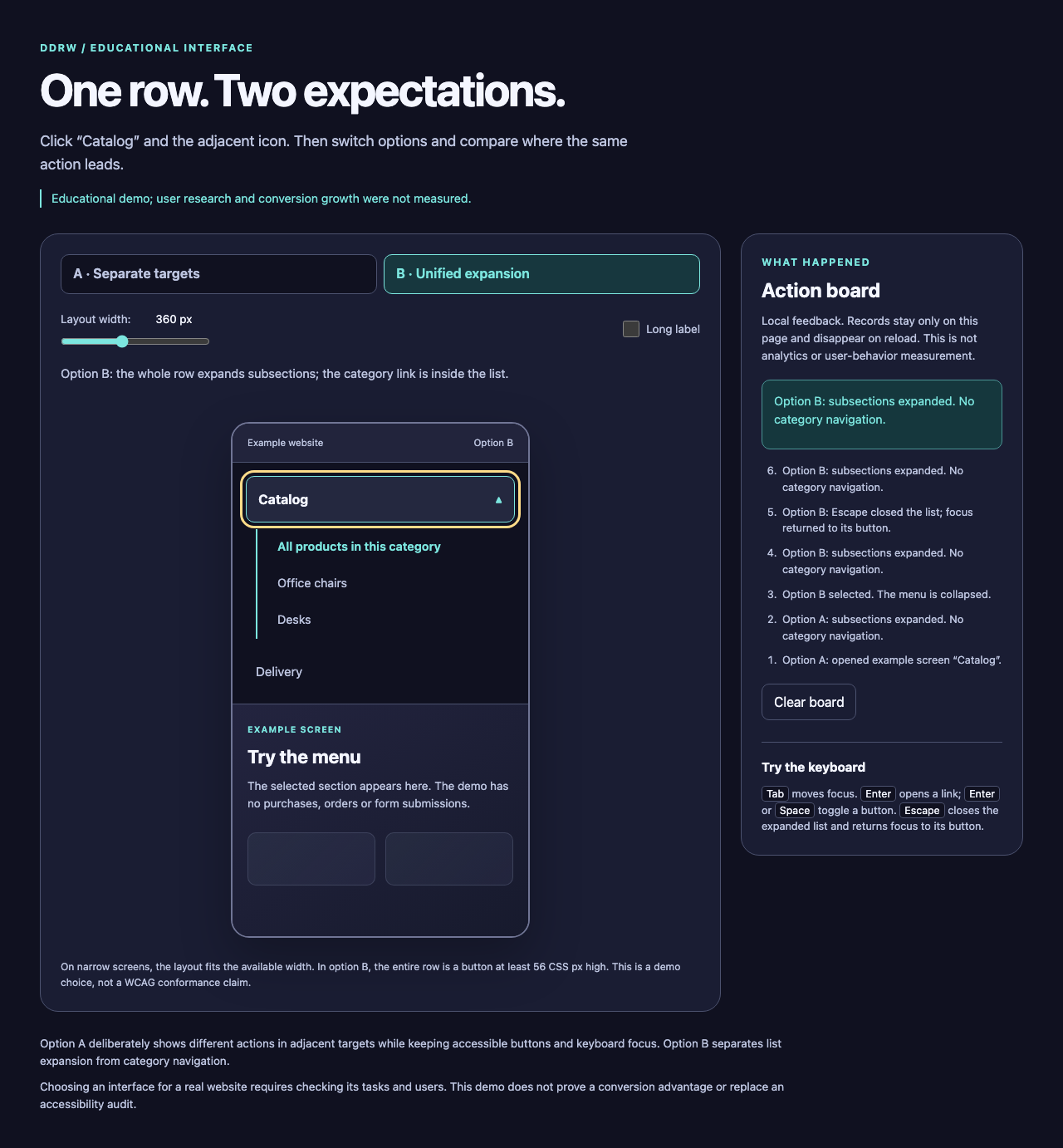
In the educational example, you can switch A/B, change the simulated phone width and enable a long category name. Every page is fictional: following a link changes the sample screen and records an action on a local activity board. The demo sells nothing, submits no forms and collects no analytics.
The demo archive is in “Files for this article” at the end of the page. On a computer, extract the whole archive and open index.html: keep the stylesheet and script beside it. The example works without internet access. Instructions and testing limitations are included in README.md.
Repeat the same task: expand subsections, open the category overview, return and close the list. In A, compare tapping the label with tapping the arrow. In B, tap the whole row and then the separate link inside. The activity board shows the result of each step.
Pay attention to long labels. Wrapping must not hide a button, overlap an adjacent target or change the meaning of an action. Test enlarged text and narrow screens separately from a polished design on a wide monitor.
Agree keyboard and focus behavior
A button expands a list; a link navigates to a page. Preserve that distinction in HTML. Do not automatically add menu and menubar roles to ordinary website navigation: they imply a more complex interaction model.
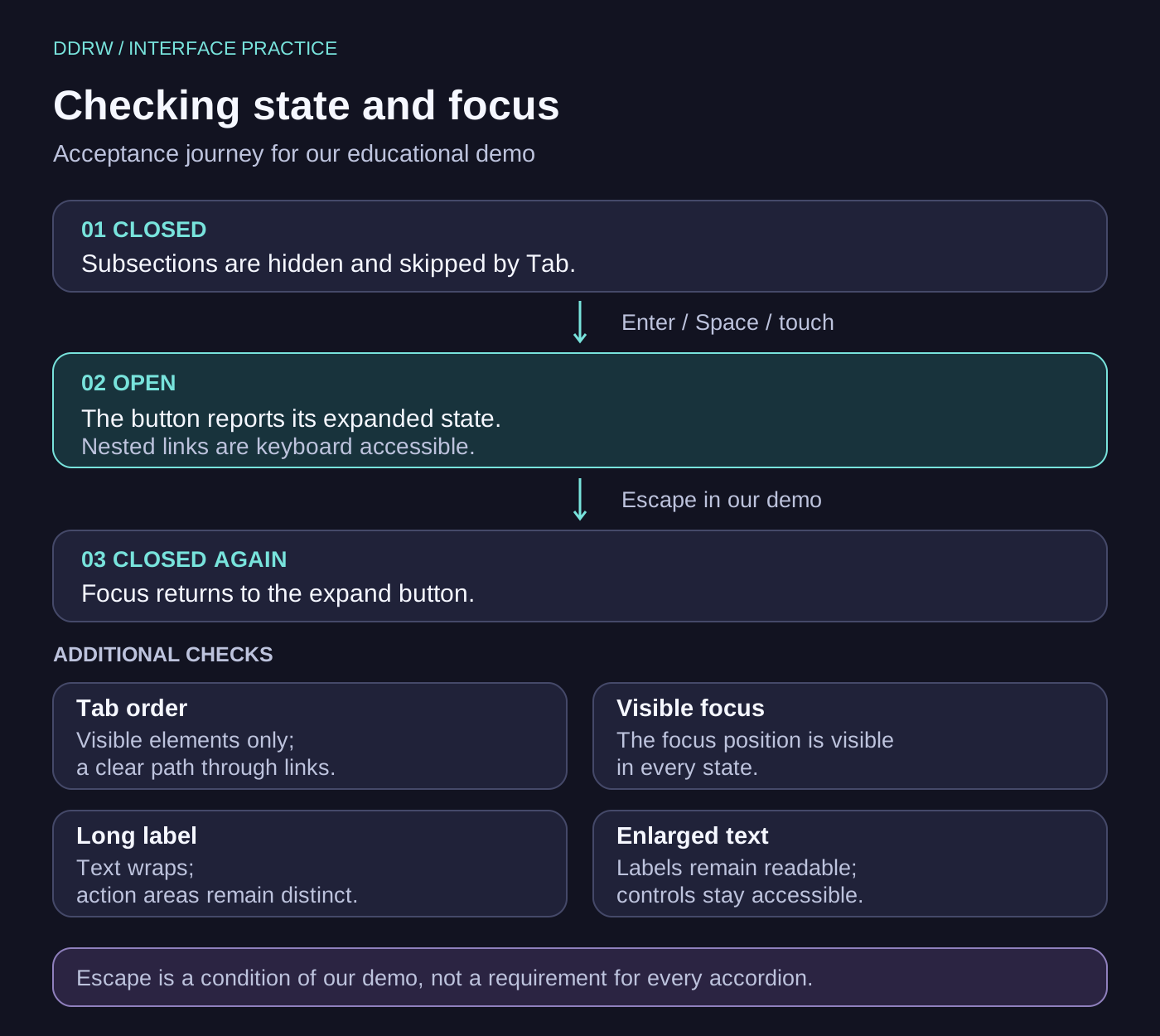
The expand button's aria-expanded state must match the visible state. In our demo, aria-controls also connects the button to the controlled list. Hidden links are excluded from the Tab sequence. Enter and Space toggle the native button; Enter activates a link.
In the demo, Escape closes the open list and returns focus to the expand button. That is the chosen behavior for this navigation example. It should not be generalized without qualification to every accordion and FAQ block.
Do not add arrow-key controls simply to resemble a desktop application menu. For a simple link list, first check the ordinary Tab order, visible focus and expected button actions.
Tap-target size: record the project's criterion
In our main option B, the expand button is at least 56 CSS pixels high. This is a setting of the educational component, not a universal requirement for every website. In A, the independent arrow button is 36 × 36 CSS pixels: the difference is visible in the demo.
WCAG 2.2 success criterion 2.5.8 at level AA sets a minimum target size of 24 × 24 CSS pixels, with specified exceptions, including target-spacing conditions. The 44 × 44 size belongs to enhanced success criterion 2.5.5 at level AAA. Meeting one size condition does not mean the entire component conforms to WCAG.
For acceptance, specify a concrete target area, check it on a real device and ensure adjacent actions do not overlap. The arrow's visual size and the active button's dimensions may differ; measure the actual target.
Acceptance checklist for designers and developers
| Check | Expected result |
|---|---|
Activate the label and icon | Each area performs the agreed action; targets do not overlap |
Expand and close the section | Visible state and aria-expanded agree |
Tab through the elements | Order is clear, focus is visible and hidden links are skipped |
Press Enter and Space on the button | The list toggles without unintended navigation |
Press Enter on a link | The expected destination opens |
Press Escape inside the open list | The agreed behavior occurs; our demo returns focus to the button |
Enable a long label and a narrow screen | Text wraps, buttons remain accessible and elements do not overlap |
Enlarge text and test touch on a device | Content and controls remain accessible; adjacent targets are distinguishable |
This checklist tests one component. Broader issues of contrast, forms, alternative text and other requirements are covered in our website accessibility article. For the whole inquiry journey, see mobile UX for service websites; for choosing product attributes, see catalog filters.
If the choice between models remains uncertain, give audience representatives concrete tasks on a prototype and observe their actions. Record conditions, errors and expectations. A small review by colleagues helps uncover questions, but its findings should not be presented as a demonstrated sales increase.
DDRW can help agree navigation structure, prepare a prototype and define test criteria as part of UI/UX design.
The text and cover were prepared with AI assistance. Diagrams and the demo were created for this article. This is an educational example without client data; user research, testing with every screen reader and conversion measurement were not performed.