Prepare the spreadsheet as a data source
Before transferring a catalog, agree what each row means, how a product differs from a variant and which identifier lets the system recognize an existing item. Then clean the values, match photographs and perform a test load. An attractive spreadsheet does not guarantee a correct import: unambiguous fields and verifiable update rules matter.
First save the original file separately. Work on a copy and assign one person responsible for the final version. Several spreadsheets with identical names and different corrections quickly create uncertainty. Record the export date and data source so you can establish after launch which catalog was transferred.
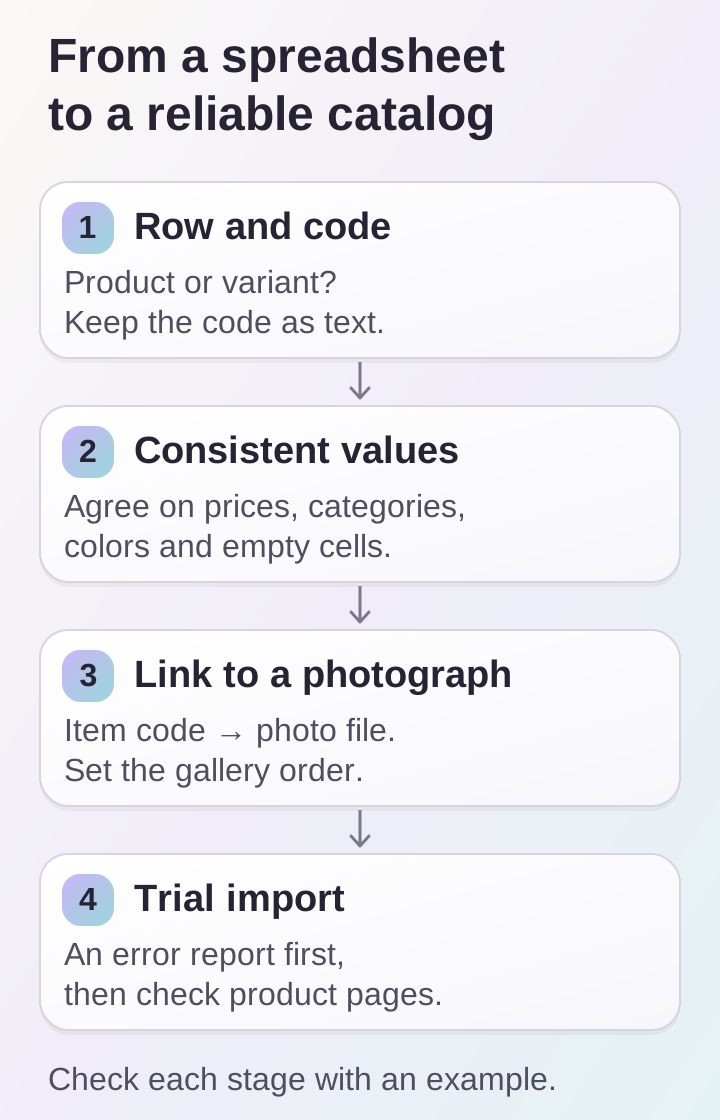
A stable code connects a row, variant and photograph. The test load should reveal errors before the catalog is published.
Decide what a row represents
A row may represent a product or a specific variation. For a T-shirt with several colors and sizes, explicitly connecting variants to a parent product is clearer than listing all combinations in a free-text cell. Every sellable variant needs a stable identifier. A name is unreliable for this role because editors may change it.
Prepare a column dictionary: field name, meaning, permitted values and whether it is required. For example, product code, variant code, name, category, price, currency, availability, color, size and photo URL. This is an example structure rather than a universal template: the fields depend on your catalog model. Do not add unverified attributes just to fill gaps.
Preserve codes without conversion
SKUs and external identifiers often resemble numbers but are not intended for calculation. Code 00125 differs from 125 when leading zeros form part of the identifier. Set these columns to text before entering or importing data, and check the result after saving. Do not reconstruct missing characters by guessing; compare them with the original catalog.
Excel can remove leading zeros and convert long numeric codes. Changing a cell’s display format does not restore data already lost. Microsoft describes choosing text column types when loading text files in its guidance on keeping leading zeros and large numbers.
Apply consistent value rules
Separate a number from its explanation. A price column should not mix “5,000 rubles,” “on request” and blank values without an agreed meaning. Clarify currency, decimal separator and blank-cell behavior. Price on request can be a separate product state if the store supports it; it must not silently become zero.
Agree dictionaries for colors, sizes and categories. “Graphite,” “graphite gray” and “dark gray” may describe one group or different items—the catalog owner decides. Remove accidental spaces and duplicates, but do not automatically merge similar products. Define stock units and acceptable values in advance, particularly for products sold in sets.
Prepare photographs and their relationships
An image embedded in a cell may not be accessible to the import tool. Provide separate files or agreed URLs with a mapping table: item identifier, image, order and description. If photographs differ by color, associate them with the variant. Do not rely solely on filenames such as “latest-final.”
Check that the tool can access the links, the files open and each image belongs to the right item. Define the main photo and gallery order separately. Keep originals for later size preparation; the optimization process is described in the website image guide.
Agree on creation and update behavior
An import needs clear consequences. Which rows create new items? Which update existing ones? Does a product missing from the file mean deletion or simply no update? A blank description might preserve previous copy or clear it—agree explicitly. One action should not unexpectedly replace another.
Request a preview mode: a list of new items, changes and errors without publication. The report should identify the row and specific field. Loading the same file again must not create duplicates. Include these requirements in the import task before processing the full catalog.
Check a test batch
Choose a small but varied set: a simple product, several variants, a missing size, a long name and an item with several photographs. Compare the result with the source spreadsheet. Check search, categories, price, the selected variant and images on a phone. Then fix the rules rather than just individual cards.
After the full load, compare product and variant counts, the error list and sample items from every category. Keep the file, report and agreed exceptions. If data changes regularly, assign an owner for subsequent exports and repeat the existing-product update test.
Frequently asked questions
Is XLSX or CSV better? Use a format supported by the agreed import. With CSV, defining encoding, delimiter and how text identifiers are preserved is particularly important.
Can formulas be imported? Provide agreed final values unless the tool explicitly supports formulas. Check that a price does not depend on a hidden sheet or an external file.
Should all empty rows and columns be removed? Remove accidental ones, but keep the original first. Blank values within a product require a separate rule rather than mechanical deletion.
Can the entire catalog be loaded at once? A test batch usually reveals incorrect relationships and conversions sooner. Perform the full load after checking the result and the correction plan.
Preparation checklist
- The original is saved, and the final version and responsible person are identified.
- Products and variants have stable identifiers.
- Columns and blank values are documented.
- Categories, prices and photographs are checked.
- A test import and repeat update have been performed.
Send DDRW a small spreadsheet sample together with a description of the current catalog. This provides a basis for agreeing a transfer into an online store or data exchange for a web platform.